
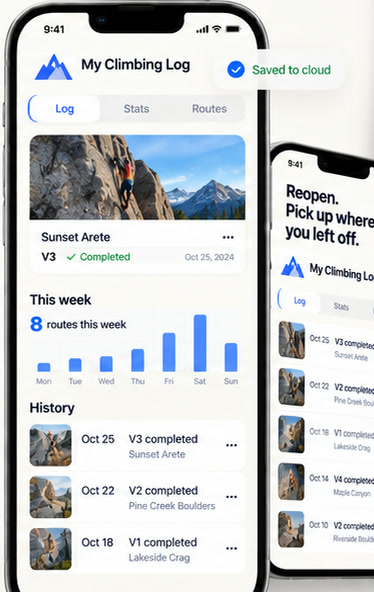
A practical way to start
- Define
Specify the records, history, and ways you need to query them.
- Choose scope
Decide whether the data is personal or shared with defined members.
- Save
Confirm a successful cloud write after a real action.
- Reopen
Open the same work again and check that its history is read back.
Say exactly what should be saved
For example: “Save each climbing route’s difficulty, attempts, and notes to my personal cloud records, and show the history when I reopen the app.” Naming the data and the intended flow is clearer than simply asking for a save feature.
A work must explicitly use cloud data capabilities and write records at the right points in its flow. Not every creation automatically saves all content. A “saved” label on a screen is not, by itself, proof that a cloud write succeeded.
Personal and shared records have different roles
Personal data spaces are isolated by account and work, which suits private history and progress. When people need to maintain information together, a work can use supported shared data spaces with separate membership.
Work sharing, room invitations, and data space membership are different permissions. Sharing a program does not mean all recipients immediately share their personal records. A collaborative work should make clear which records are shared with whom.
App versions, cloud records, and source backups are distinct
Saving a work version preserves the program you run. Cloud data capabilities store business records inside that program. A private source backup is uploaded when you choose and contains source, runtime files, and assets; it does not include creation conversations or local saved data.
These mechanisms can complement each other, but do not replace one another. An online room serves the current shared experience and does not automatically become a permanent record.
Check a real save and reopen flow
After creating the work, add a record, check its success state, then close and reopen the same work to see whether the history is read back. A failed read should be explained rather than shown as an empty history.
Online reads and writes require an account and network access. What is saved, how collaboration works, and what happens offline depend on the work’s implementation. Privacy and data controls remain available through the website policy and the app settings.
Common questions
Does a private source backup include chats and local saved data?
No. It contains the work source, runtime files, and assets you choose to upload. Runtime records need to follow the work’s separate data storage design.
Will sharing an app expose my personal history?
Sharing a program does not automatically grant access to all of your personal history. Personal records, shared data membership, and online rooms are managed separately.
Start with an idea of your own.
Create, try, and refine with AI on your iPhone.
Download on the App Store