
A practical way to start
- Describe
Explain the content, look, sizes, and actions you want.
- Prepare
Prepare an instance in a work that supports widgets.
- Add
Find GLint in the system widget list and select your instance.
- Refine
Adjust the content and layout as you use it.
Decide what you need at a glance
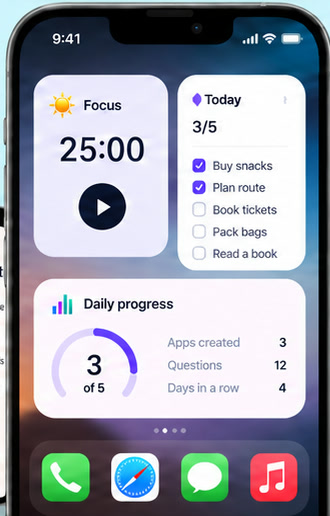
Widgets work well for quickly checking a state or taking one clear action. Start with something like seeing your focus time, reviewing today’s tasks, or checking off a habit.
Tell the AI what content to show, the style you like, the sizes you need, and any intended actions. Different works can have different displays and interactions; not every work supports every action or size. Images on this page are creative concepts rather than a list of preinstalled designs.
Prepare it in GLint, then add it to your Home Screen
After creating a work that supports widgets, use its widget controls in GLint to prepare the instance and content you want. Return to the iPhone Home Screen, enter edit mode, open the system widget selection interface, and find GLint.
Choose a size and follow the system prompts to select the instance you prepared. Move it into place, or return to GLint to refine your work. Preparing and placing Home Screen widgets requires iOS 18 or later.
Actions and refreshes follow the work and iOS
A work may implement actions such as checking off a habit or changing a state. Some actions may need to open the app. Available interactions depend on both the work and system support.
iOS manages widget refresh timing. A widget is not a continuously running app window. Network content, background updates, and interaction results depend on the specific work; continuous real-time refreshes are not promised.
The work, widget, and data have different roles
Use the work to create and manage the widget, then use your Home Screen for quick views and actions. This guide covers Home Screen widgets.
Cloud records, external requests, and device features must follow the capabilities supported by the particular work. Adding cloud data to an app does not mean every widget automatically syncs the same records.
Common questions
Do widgets have the same system requirement as the app?
The GLint app supports iOS 17. Preparing and placing Home Screen widgets requires iOS 18 or later.
Will a widget always update in real time?
No. iOS manages refresh timing. The content and available actions also depend on the work.
Start with an idea of your own.
Create, try, and refine with AI on your iPhone.
Download on the App Store